

So having given you all the five pro email marketing tips you need to know, I thought I’d come back today and share with you all the easiest way to connect Flodesk to WordPress. Now there’s a reason I chose Flodesk over all the other email marketing providers out there. I could have gone for MailChimp or ConvertKit, but for me Flodesk is not only the easiest one to use. But the beautiful templates mean you don’t have to be a email marketing expert to create stunning emails that people want to open and engage with.
Now if you’re on the fence about starting a mailing list or a newsletter, then let me quickly run through why starting one will be one of the best investments for your blog. Essentially the only two platform you will ever own outright, is your blog. And your mailing list. Social media platforms will come and go but your blog and your mailing list will be consistent. And most importantly they’re yours.
If you’re still not sure why you’d want one, here is the number one reason why you need an email list. And that’s because having one will increase your income opportunities. And who doesn’t want to earn more money? Emails are a great way to generate income as you can include:
- Affiliate income by sharing your favourite products
- Launching a product to an engaged audience
- Boosting traffic by directing subscribers back to your site
So if you’re sold on the idea of having a mailing list or newsletter but not sure how to connect it your blog. Then this is where I can help.
DOWNLOAD THE GENESIS ENEWS EXTENDED PLUGIN
So the first thing you need to do is to download the Genesis eNews Extended plugin. This plugin will just allow that connection to be made from Flodesk to WordPress. So all the beautiful forms you create in Flodesk, can be shown on your WordPress site. And I would also download the Insert Headers & Footers plugin if you don’t already have that one activated.
So once you’ve decided on Flodesk and want to add a form. It’s time to decide where you want the form to sit on your site. There are four types of forms you can use on Flodesk. And they are:
- Full page
- Pop-up
- Ribbon banner
- Inline with image
FULL PAGE FORM
Now this is one of the easiest forms to connect. As all you need to do is just link to it. I have this on the Freebies section of my blog. And when you click the button to sign up.
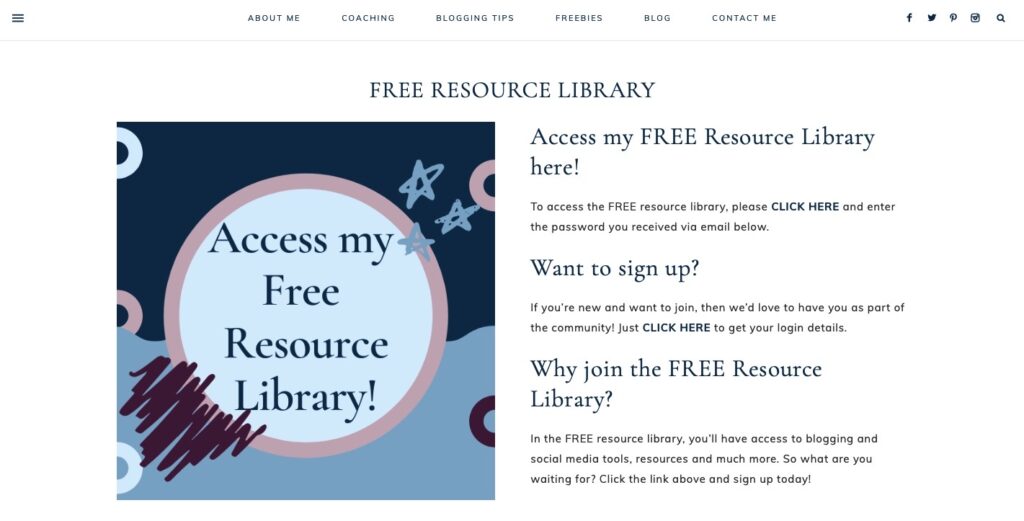
It opens a new link on a new page which looks like this. This is honestly one of the simplest forms to embed onto your site. As that is all you have to do!
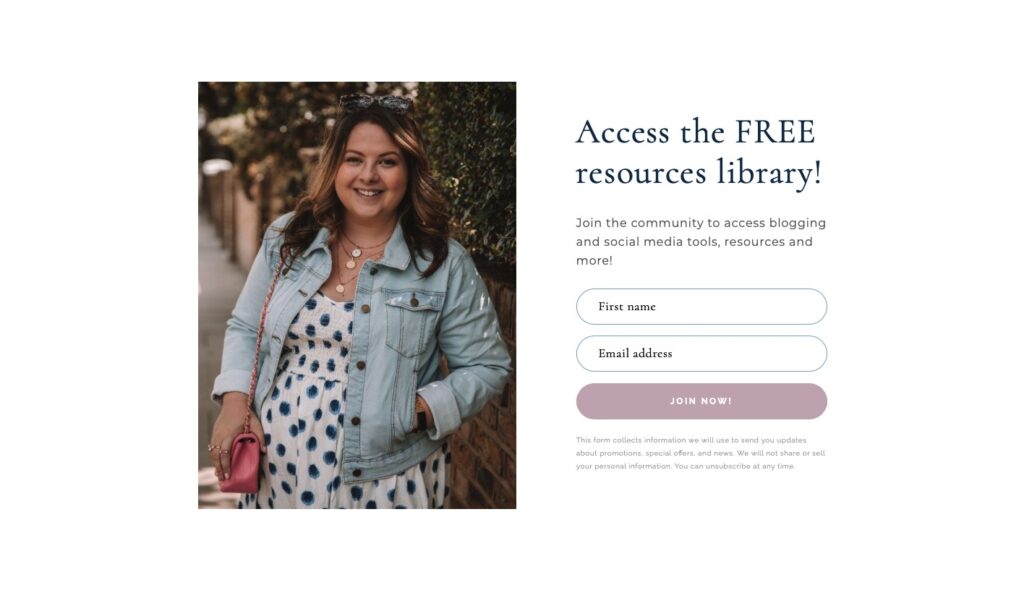
POP-UP FORM
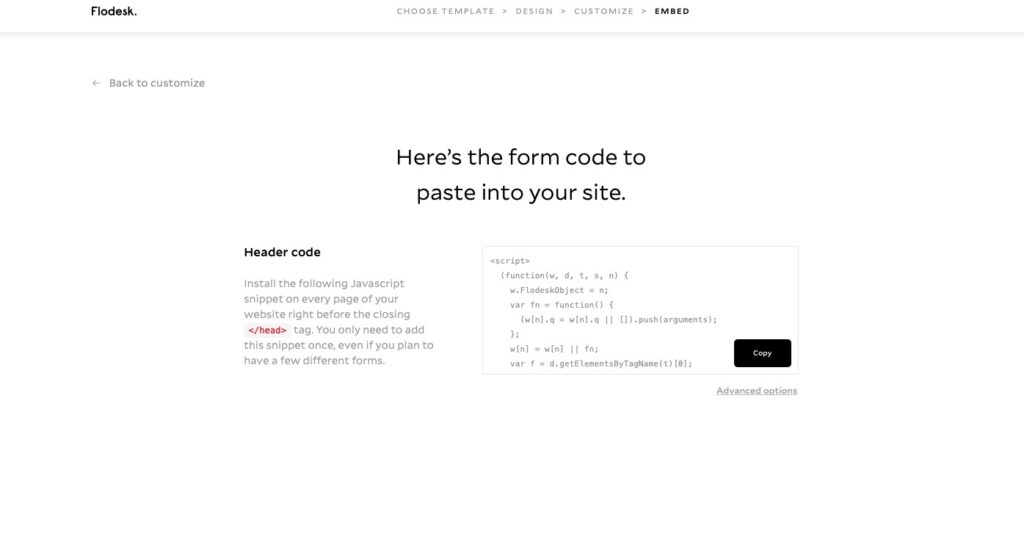
Again, this is super easy to connect Flodesk to WordPress. Once you’ve created your pop-up form in Flodesk, and you’re on the embed page, you’ll be given just a header code. So here is where you activate the Insert Headers and Footers plugin and copy the header code from Flodesk, into the header code of your plugin. To find the plugin in your WordPress dashboard, just head to settings > insert headers and footers. And that’s it. The pop-up will now appear on all your pages.
RIBBON BANNER FORM
Now I have this form on my homepage. It’s not as easy to connect as the full page form, but it’s still very easy! For this one, you will need the Genesis eNews Extended plugin. I have this sitting on my homepage. As it’s one of the first areas people will see when they visit my blog.
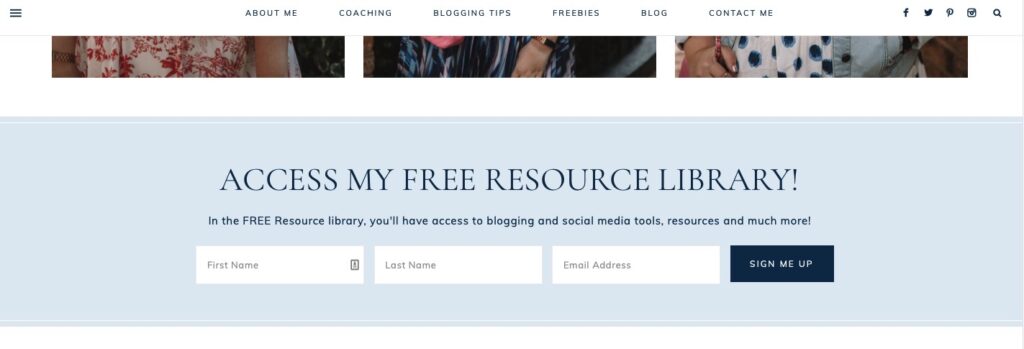
To connect Flodesk to this form, you’ll need to add the Genesis eNews plugin to a widget area on your homepage. Mine sits in my homepage section 2.

And then head to the embed section of the form on Flodesk. In the embed section, you’ll see an option to click Advanced Options. Click that and then click Get Genesis eNews Snippets.
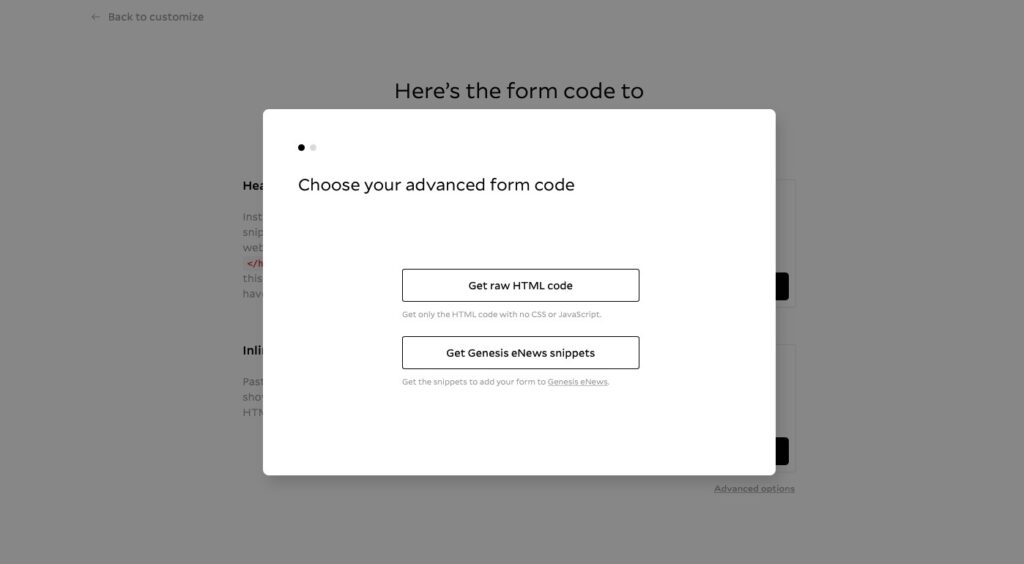
This will open and give you the fields below which you’ll need to copy and paste into the Genesis eNews Extended plugin on your site.

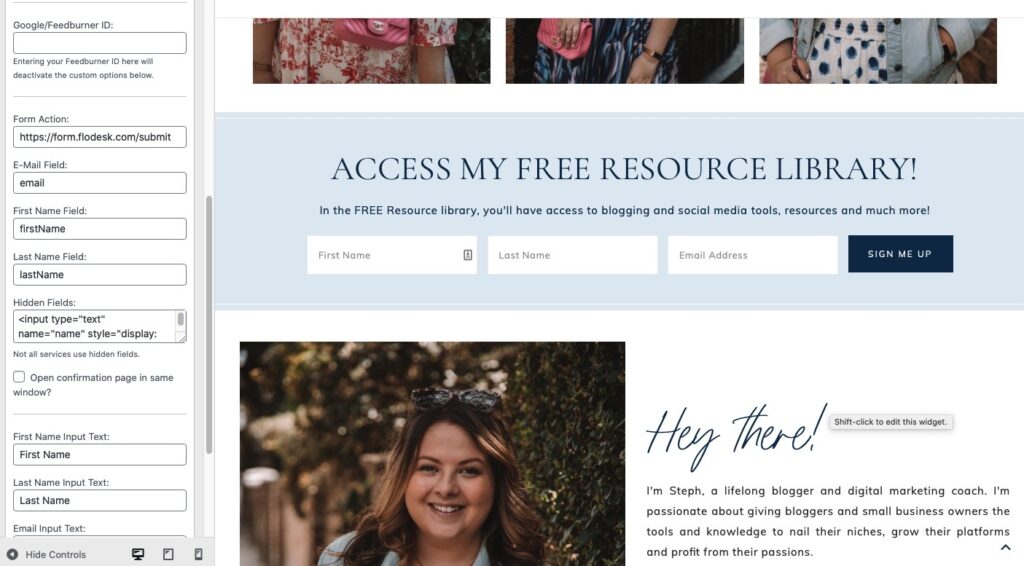
And voila, that is how you can connect a ribbon form in Flodesk to your WordPress Site.
INLINE WITH IMAGE FORM
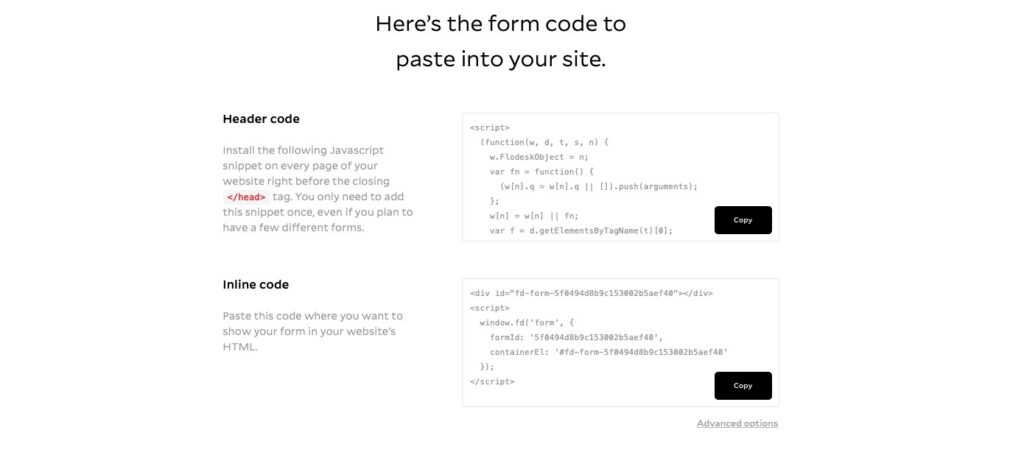
And last, but by no means least, this is my favourite form to use. And one that I use on every single blog post. It’s so easy to use but I also find it incredibly effective in bringing in the sign-ups. Once again, once you’ve created your form in Flodesk and you’re on the embed page. You take your header code and copy that into the header section of your insert headers and footers plugin. This is found in settings > insert headers and footers. And then head to your blog post. Add a custom HTML block and then copy the inline code from Flodesk into that custom HTMl block. And that’s it.
So there you have it. The easiest way to connect Flodesk to WordPress. If you want to join Flodesk, and save a huge 50% on the monthly price, then just join using this link. And let me know in the comments any other questions you have about Flodesk.

I have been hearing such positive things about Flodesk so this is an incredibly helpful post – will definitely be looking into utilising it myself.
I think flodesk sounds absolutely impressive, I need to look into it. I must admit I have not paid much attention to my e-mail subscribers.
This is a great guide and for those who want to do it will find this is easy thanks to it, certainly well worth looking into it, great post.
I have heard of Flodesk before but I wouldn’t swop unless I started sending out regular newsletters. Currently my email provider allows me to send out a newsletter based on my RSS feed which is about as much as I can cope with! This is a tool for serious email marketers I think.
I did have a mailing list but I need to transfer the contacts to my wordpress mail. This sounds interesting. I’d need to check out costs as I’ve only used free ones so far.
This is a great resource. I don’t have a wordpress blog yet, but I am seriously considering starting one before this year ends. I guess I just feel tech-challenged which is why I have been putting things off. Thanks for explaining things in an easy to understand article.
Thanks for sharing this! I really need help with my site. I moved to self hosting this year, did the basic work and now have left it but it needs work done to send more traffic. It seems to do worse than it was when it was with wordpress
I really wish I had read your blog post before I spent hours setting up Mailchimp for my blog. Flodesk seems so simple from your description and would have saved me time as well.
Oh this looks great and I haven’t heard of it before but could be exactly what I need. That’s an amazing discount too!!
I’ve never heard of Flodesk before. I need to spend more time on my email list and make it work better for me.